|
Share guide
|
|
| crowdrummer | Date: Wednesday, 29-Oct-2014, 9:56 PM | Message # 1 |
 Smaw Man
Group: Blocked
Messages: 133
Status: Offline
| SHARE GUIDE
|
| |
|
|
| crowdrummer | Date: Sunday, 30-Nov-2014, 9:30 AM | Message # 2 |
|
Smaw Man
Group: Blocked
Messages: 133
Status: Offline
| About Share
You can upload and share screenshots and video clips of gameplay that are saved on the PS4™ system by using online services. You can also
broadcast (stream) your gameplay, and share information about things
such as content from PlayStation®Store.
During parties, you can also share screens and gameplay with other players in the party. - Sub account users can save screenshots and video clips, but cannot upload or broadcast using online services.
- You can also use Remote Play to save and upload screenshots and video clips. However, you cannot use Remote Play to broadcast or
share gameplay.
- The online services that can be used vary depending on country and region. For details, contact customer support in your country or region.
- Screenshots, video clips, and broadcasts may include personal information of yours or other players, such as real names, online IDs,
text chat, and voice chat. You should have other players' permission
before you share content containing their personal information.
Basic operation of the SHARE button Short Press
Display the menu for the Share feature.
To share immediately, select which action you want to perform.
When you select [Upload Screenshot] or [Upload Video Clip], the screenshot or video clip is also saved. To save a screenshot or video clip without uploading it, press the button or button.
Long Press
Take a screenshot.
When you press and hold the button for at least 1 second, a screenshot is taken and (finished) is displayed in the upper left corner of the screen.
Use this when you want to take a screenshot without displaying the menu.
Double-Press
Set the start point for a video clip.
Use this when you want to start recording again from the current point in time.
This is convenient when there is a specific scene you want to save.
You can change how the SHARE button operates. Press the SHARE button, then press the OPTIONS button while the menu for
the Share feature is displayed, and then select [Share Settings] >
[SHARE Button Control Type].
|
| |
|
|
| crowdrummer | Date: Sunday, 30-Nov-2014, 9:31 AM | Message # 3 |
|
Smaw Man
Group: Blocked
Messages: 133
Status: Offline
| Sharing a screenshot
You can take screenshots while playing a game or from the home screen. You can then upload these screenshots to an online service by using the SHARE button, or send them to Friends with (Messages).
Uploading a screenshot
1.
Press the SHARE button, and then select [Upload Screenshot].
A screenshot is saved.
2.
Select a screenshot.
3.
Select an upload destination.
4.
Enter a comment, and then select [Share].
If you selected (Messages) in step 3, select (Add Player) and specify the recipient before sending.
When you want to save a screenshot without displaying the menu
Press and hold the SHARE button for at least 1 second. The screenshot is saved and (finished) is displayed in the upper left corner of the screen.
Depending on the content or the state of the system, it might not be possible to take a screenshot.
The first time you connect to an online service, you must enter your account information for the online service. If you do not have an account, create one by visiting the online service's website.
The number of screenshots that you can upload at the same time, and methods for deleting uploaded screenshots, vary by online service.
Viewing screenshots that you saved
Select (Capture Gallery) from the content area.
If you press the OPTIONS button, you can sort content by name or date, and delete content. You can also copy content to a USB storage device.
FAT and exFAT formatted USB storage devices are supported.
|
| |
|
|
| crowdrummer | Date: Sunday, 30-Nov-2014, 9:32 AM | Message # 4 |
|
Smaw Man
Group: Blocked
Messages: 133
Status: Offline
| Sharing a video clip
Video of the most recent 15 minutes of gameplay is continuously and automatically recorded.
For some games, there might be scenes in which video cannot be recorded. The maximum 15 minutes of gameplay that are saved as a video clip do not include scenes in which video cannot be recorded. An icon is displayed in the upper left corner of the screen at the start and end of these scenes.
You can adjust the length of the video clip that you save. Press the SHARE button, press the OPTIONS button while the menu for the Share feature is displayed, and then select [Share Settings] > [Video Clip Settings] > [Length of Video Clip].
1.
Press the SHARE button, and then select [Upload Video Clip].
The video clip is saved.
2.
Select a video clip.
3.
Select an online service.
4.
Edit the video clip
You can limit a video clip to a scene you like by trimming its start point and end point. Select [Trim]. You can also add comments, and if you link your account from Twitter, you can adjust settings for features such as posting a link to the broadcast.
5.
Select [Share].
When you know the scene you want to save
Press the SHARE button twice at the start of the scene you want to save, and then press the SHARE button again at the end of the scene. If you do not press the SHARE button at the end of the scene, recording will continue until the maximum video clip length you have set has been reached, and then a video clip will be saved.
You can set whether icons will be displayed when scenes cannot be recorded, whether you want to include microphone audio when recording a video clip, and other options. Press the SHARE button, then press the OPTIONS button while the menu for the Share feature is displayed, and then select [Share Settings] > [Video Clip Settings].
If a checkmark is set in (Settings) > [Devices]> [PlayStation®Camera] > [Mute Microphone], that setting is prioritised.
The first time you connect to an online service, you must enter your account information for the online service. If you do not have an account, create one by visiting the online service's website.
Only 1 video clip can be uploaded at a time.
Methods for deleting uploaded video clips vary by online service.
Viewing video clips that you saved
Select (Capture Gallery) from the content area.
If you press the OPTIONS button, you can sort content by name or date, and delete content. You can also copy content to a USB storage device.
FAT and exFAT formatted USB storage devices are supported.
|
| |
|
|
| crowdrummer | Date: Sunday, 30-Nov-2014, 9:44 AM | Message # 5 |
|
Smaw Man
Group: Blocked
Messages: 133
Status: Offline
| Sharing your gameplay When you use Share Play, two players who have joined the same party can share the game screen. The user who initiates Share Play is
called the host, and the user who joins is called the visitor. - For details on parties, see “About parties”.
- If sub account users are restricted by parental controls, they cannot use this feature.
What you can do with Share Play - Share the game screen
The host’s game screen is displayed on the visitor's PS4™ system. The visitor cannot operate the host’s screen. - Give Controller to Visitor (Allow the Visitor to Play as You)
The host’s game screen is displayed on the visitor's PS4™ system, and the visitor plays as the host. The host must be a PlayStation®Plus member. - Give Controller to Visitor (Play a Game Together)
The host’s game screen is displayed on the visitor's PS4™ system, and both the host and visitor play together while viewing the same screen. The host and the visitor must be PlayStation®Plus members.
- You can use Share Play for up to one hour at a time. You can check the remaining time from the party screen. For details about the
party screen, see “Viewing the party screen”. - Only the host can earn trophies during Share Play.
- When the host views a screen other than the game screen during Share Play, a standby image is displayed on the visitor's system.
- If the host and visitor are playing a game together, you must set a checkmark in [Allow]under
 (Settings) > [Parental Controls] > [Restrict Use of PS4 Features] (Settings) > [Parental Controls] > [Restrict Use of PS4 Features]
> [Select [New User] and Log In to PS4] on the host's PS4™ system. - Depending on the user account and the game played, Share Play may not be available, or some scenes may not be displayed.
Starting Share Play as a host Select  (Share Play) > [Start]from the party screen. When the visitor joins (Share Play) > [Start]from the party screen. When the visitor joins
Share Play, the host’s screen is shared with the visitor. 
You can also start Share Play by pressing the SHARE button and selecting [Start Share Play]. Give Controller to Visitor Select (Share Play) > [Give Controller to Visitor] from the party screen.
To take the controller back, select (Share Play) > [Take Back Controller] from the party screen. Even
after you take the controller, your screen will be shared until you stop
Share Play.
Stop Share Play
Select (Share Play) > [Stop Share Play] from the party screen.Joining Share Play as a visitor
Joining Share Play as a visitor
Select (Share Play) > [Join Share Play] from the party screen.
|
| |
|
|
|
|
| crowdrummer | Date: Sunday, 30-Nov-2014, 9:52 AM | Message # 7 |
|
Smaw Man
Group: Blocked
Messages: 133
Status: Offline
| Broadcasting your gameplay
You can broadcast (stream) your gameplay by using online services.
1.Press the SHARE button while playing a game, and select [Broadcast Gameplay].
2.Select an online service.If you have several channels, the screen for selecting a channel is displayed.
3.Prepare to broadcast.You can enter a description, adjust settings for the PlayStation®Camera, and perform other actions. If you link your accounts from online
services such as Twitter, you can adjust settings so that a link to the
broadcast is posted.
4.Select [Start Broadcasting]. - The first time you connect to an online service, you must enter your account information for the online service. If you do not
have an account, create one by visiting the online service's website.Also, depending on the online service, you might need to register as apaid member. - During a broadcast, a standby image will be displayed to the spectator if you switch from the game screen to a different screen, such
as the home screen or a settings screen, or if there is a scene thatcannot be broadcast. - Broadcasts can include voice chat during parties. Press the OPTIONS button while the menu for the Share feature is displayed and set
a checkmark in [Share Settings] > [Broadcast Settings] >[Advanced Settings] > [Include Party Audio in Broadcast]. Broadcastswill include only the voices of players who have enabled [Allow YourVoice to be Shared] in party settings. - Limits on the length of time you can broadcast and other details vary by online service.
- To unlink from online services, press the SHARE button, then press the OPTIONS button while the menu for the Share feature is
displayed, and then select [Share Settings] > [Link with OtherServices]. - If broadcasts will not start or comments are not displayed, make sure the following port numbers are enabled. For information about
confirming your port numbers and how to adjust settings, refer to theinstructions supplied with the network device in use, and informationfrom your Internet service provider. - TCP: 1935, 2805~2899, 6667
Viewing the screen during a broadcast 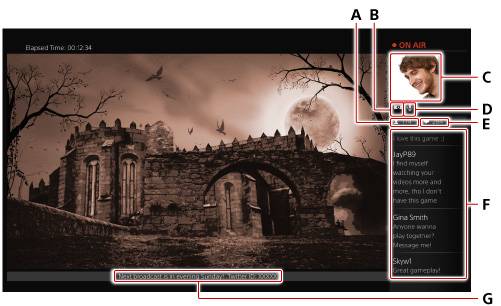 A )Number of spectatorsB )Camera status*1C )Video from the camera*1D )Microphone status*2E )Number of commentsF )Most recent commentsAll comments are displayed if you press the SHARE button and then select [Broadcast Settings] > [View Comments].G )Message to spectatorsTo adjust the setting, press the SHARE button and select [Broadcast Settings] > [Advanced Settings] > [Message to Spectators]. *1When using a PlayStation®Camera.*2When using a headset or the microphones on a PlayStation®Camera. A )Number of spectatorsB )Camera status*1C )Video from the camera*1D )Microphone status*2E )Number of commentsF )Most recent commentsAll comments are displayed if you press the SHARE button and then select [Broadcast Settings] > [View Comments].G )Message to spectatorsTo adjust the setting, press the SHARE button and select [Broadcast Settings] > [Advanced Settings] > [Message to Spectators]. *1When using a PlayStation®Camera.*2When using a headset or the microphones on a PlayStation®Camera. - You can change settings for the camera, the microphone, how comments display, and other settings by pressing the SHARE button, and
then selecting [Broadcast Settings] > [Advanced Settings]. To displaythe game using the full screen, remove the checkmark from [DisplayMessage to Spectators and Spectators' Comments]. - Comments are displayed only when the screen resolution is either 1080i or 1080p.
- The items displayed vary depending on the settings.
- If a checkmark is set in (Settings) > [Devices]> [PlayStation®Camera] > [Mute Microphone], that setting is prioritised.
- Voice operations are also possible during broadcasts. To view a list of voice commands, select (Settings) > [System]> [Voice Operation Settings] > [Commands for Voice Operation].
Stopping a broadcast Press the SHARE button, and then select [Broadcast Settings] > [Stop Broadcasting].
Message edited by crowdrummer - Sunday, 30-Nov-2014, 9:52 AM |
| |
|
|
| crowdrummer | Date: Sunday, 30-Nov-2014, 10:04 AM | Message # 8 |
|
Smaw Man
Group: Blocked
Messages: 133
Status: Offline
| Viewing a broadcast
You can view gameplay that your Friends or other players are broadcasting (streaming). Select  (Live from PlayStation) from the content area, and then select the broadcast you want to view. If sub account users are restricted by parental controls, they cannot use this feature. (Live from PlayStation) from the content area, and then select the broadcast you want to view. If sub account users are restricted by parental controls, they cannot use this feature.
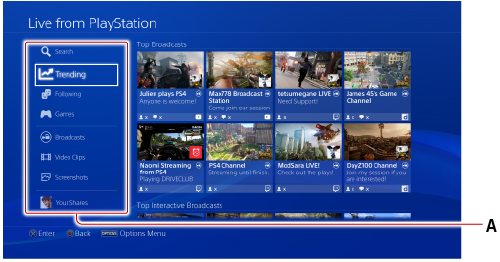
A )Switch display/Switch between currently streaming and past broadcasts.
B )Filter display  (Search) Enter a keyword to search for. (Search) Enter a keyword to search for.  (Featured) Display broadcasts on channels you follow, or broadcasts recommended by PlayStation®. (Featured) Display broadcasts on channels you follow, or broadcasts recommended by PlayStation®.  (All) Display all broadcasts. (All) Display all broadcasts.  (Interactive) Display broadcasts that support the [Interact]feature. (Interactive) Display broadcasts that support the [Interact]feature.  (Games) Display broadcasts by game. Online services Display broadcasts from specific online services. (Games) Display broadcasts by game. Online services Display broadcasts from specific online services. - Broadcasts are displayed in order of those with the most spectators. Press the OPTIONS button to sort broadcasts by other
attributes. - The online services that can be used vary depending on country and region. For details, contact customer support in your country or region.
- If broadcasts will not start or comments are not displayed, make sure the following port numbers are enabled. For information about
confirming your port numbers and how to adjust settings, refer to the instructions supplied with the network device in use, and information from your Internet service provider. - TCP: 1935, 2805~2899, 6667
Viewing the screen 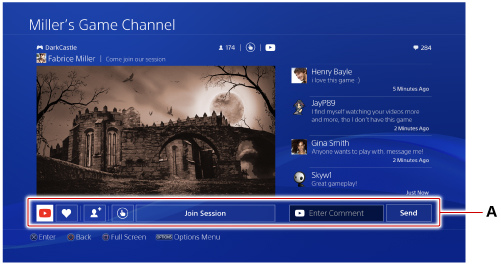 A )Broadcast operation options A )Broadcast operation options
Follow With some online services, you can follow the channels or
broadcasters you are viewing as a spectator. When you follow broadcasts
from these channels or broadcasters,they are displayed in (Featured).
Interact Become involved in games by using items and setting traps. Displayed for spectators in games that support this function.
Join Session Join the game you are currently viewing as a spectator. Displayed for spectators who can join the session.
Start This Game Start the game.
Go to PlayStation®Store You can verify details in PlayStation®Store about the game you are viewing as a spectator.
Enter Comment/Send Submit a comment to the online service. Displayed for spectators who are logged in to the online service.
Spectator comments are displayed only while the live broadcast is being viewed.
- The items displayed vary depending on the situation.
- Methods for unfollowing a channel or broadcaster vary by online service.
- To use online service features such as [Interact]or entering comments, you must have an account with the online service. The first
time you connect to an online service, you must enter your account information for that online service. If you do not have an account with the online service, create one by visiting the online service's website. You can also create or upgrade an online service account by pressing the OPTIONS button while viewing a broadcast. - To unlink from online services, press the SHARE button, then press the OPTIONS button while the menu for the Share feature is
displayed, and then select [Share Settings] > [Link with Other Services]. - You can report inappropriate broadcasts by pressing the OPTIONS button while viewing a broadcast, and then selecting [Submit
Grief Report about Broadcast].
|
| |
|
|


 You cannot operate the host’s screen during intervals when an operation is prohibited.